
Sales
The Sales section covers everything that happens at the point of sale — from ringing up a customer to printing receipts and managing outstanding balances.
Record a Sale
Use the POS terminal to ring up products and accept payment in seconds.
- 1Click New Sale (or press N) to open the POS terminal.
- 2Search for a product by name or scan its barcode. Click it to add it to the cart.
- 3Adjust quantity directly in the cart if the customer is buying multiple units.
- 4Apply a discount if needed (per item or on the total).
- 5Select a payment method — Cash, Card, or Mobile Money.
- 6Click Charge to complete the sale and update stock automatically.
 The POS terminal — products on the left, cart and payment on the right.
Sale Statuses
Every sale has a status that tells you its current state:
| Status | Meaning |
|---|---|
| Completed | Payment received in full. Stock has been deducted. |
| Pending | Sale created but payment has not been confirmed yet (e.g. mobile money awaiting network). |
| Credit | Goods delivered but payment is due later. Appears on the customer's credit balance. |
| Partially Paid | Customer paid part of the total. Remaining balance is tracked as credit. |
| Cancelled | Sale was voided. Stock quantities are restored. |
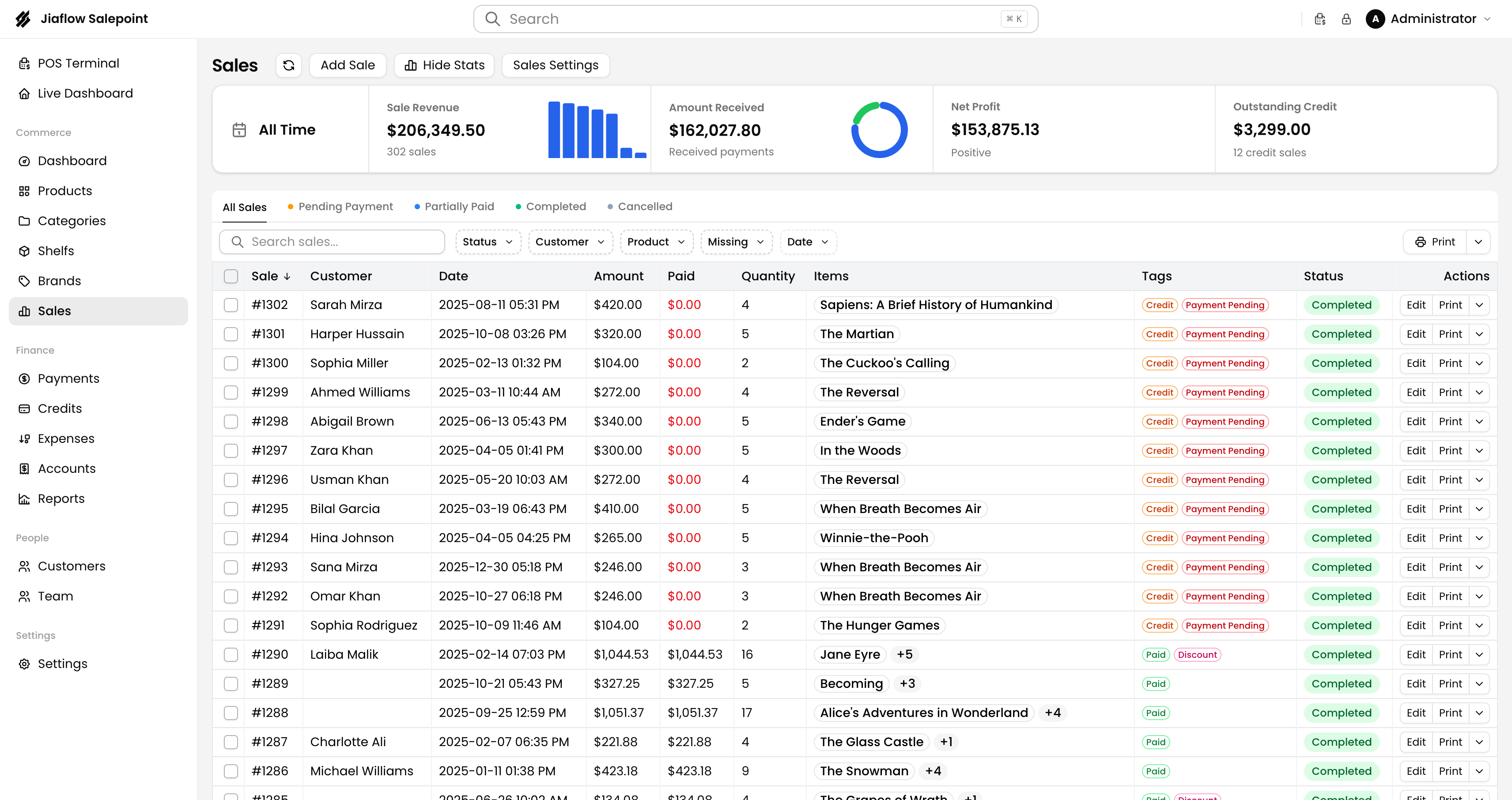
You can filter the Sales list by status to quickly find all pending or credit transactions.
Credit Sales
Credit sales let you give goods to a customer on account and collect payment later. The outstanding amount is tracked per customer so you always know what is owed.
- 1At checkout, select the customer from the Customer dropdown (or add a new one).
- 2Choose Credit as the payment method.
- 3Click Charge. The sale is recorded and added to the customer's credit balance.
- 4When the customer pays later, open Customers → [Name] → Credits and record the payment.
A customer must be selected before you can choose the Credit payment method. Anonymous sales cannot be given on credit.
Print a Receipt
Receipts can be printed immediately after a sale or retrieved later from the Sales list.
- Immediately after sale — a print dialog appears automatically on the confirmation screen. Click Print Receipt.
- From the Sales list — find the sale, open the ⋯ Actions menu, and click Print Receipt.
- Thermal printer — Jiaflow Sales supports 80 mm and 58 mm thermal printers. Configure your printer in Settings → Receipt.
You can customise the receipt header — add your store name, logo, and footer message in Settings → Receipt.