
Getting Started
Welcome to Jiaflow Sales — your all-in-one POS and store management platform. This guide walks you through logging in for the first time and getting familiar with the dashboard.
Overview
Jiaflow Sales is a web-based point-of-sale and business management system built for retail stores. It covers everything from ringing up sales at the counter to tracking your monthly net profit — all from one place.
- Live revenue, gross profit, and net profit dashboard
- POS terminal for fast in-store sales
- Full inventory with products, categories, shelves, and brands
- Expenses, credits, payments, and financial reports
- Customer and team management
First Login
After your account is created, you will receive an email with your login credentials. Follow the steps below to sign in for the first time.
- 1Open your browser and go to your Jiaflow Sales URL (e.g. app.jiaflow.com/salepoint).
- 2Enter the email address and password from your welcome email.
- 3Click Sign In. You will be taken directly to your store dashboard.
- 4Go to Settings → Profile to update your name and change your password.
Dashboard Tour
The live dashboard is the first screen you see after login. It shows a real-time summary of your store's financial health.
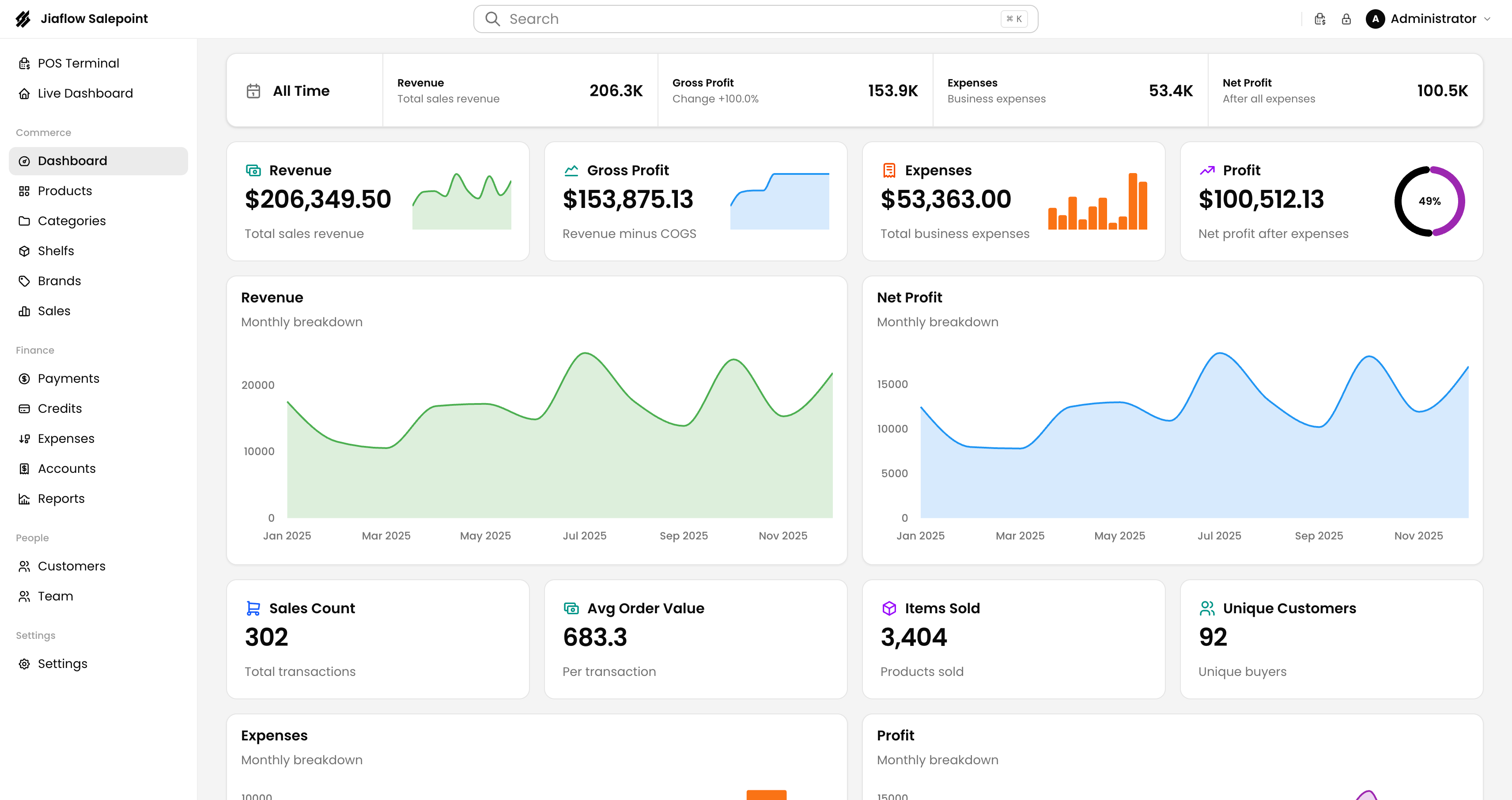 The main dashboard — revenue, gross profit, expenses, net profit, and outstanding credit at a glance.
Key dashboard areas
| Area | What it shows |
|---|---|
| Sale Revenue | Total value of all completed sales for the selected period. |
| Amount Received | Cash or payments already collected (excludes pending credits). |
| Net Profit | Revenue minus cost of goods and expenses. |
| Outstanding Credit | Total unpaid credit sales owed by customers. |
Use the date filter (top-left: "All Time", "Today", "This Month", or a custom range) to narrow down any dashboard metric.