
Products
Products are the core of your inventory. Here you'll learn how to create, manage, and bulk-import all the items you sell in your store.
Add a Product
Adding a product registers it in your inventory so it appears at the POS terminal and in reports.
- 1In the left sidebar, click Products.
- 2Click the Add Product button in the top-right corner.
- 3Fill in the product details (see field reference below).
- 4Click Save. The product is immediately available at the POS.
 The Add Product form — fill in name, price, cost, category, and stock quantity.
Edit a Product
You can update any product detail at any time without affecting existing sale records.
- 1Go to Products in the sidebar.
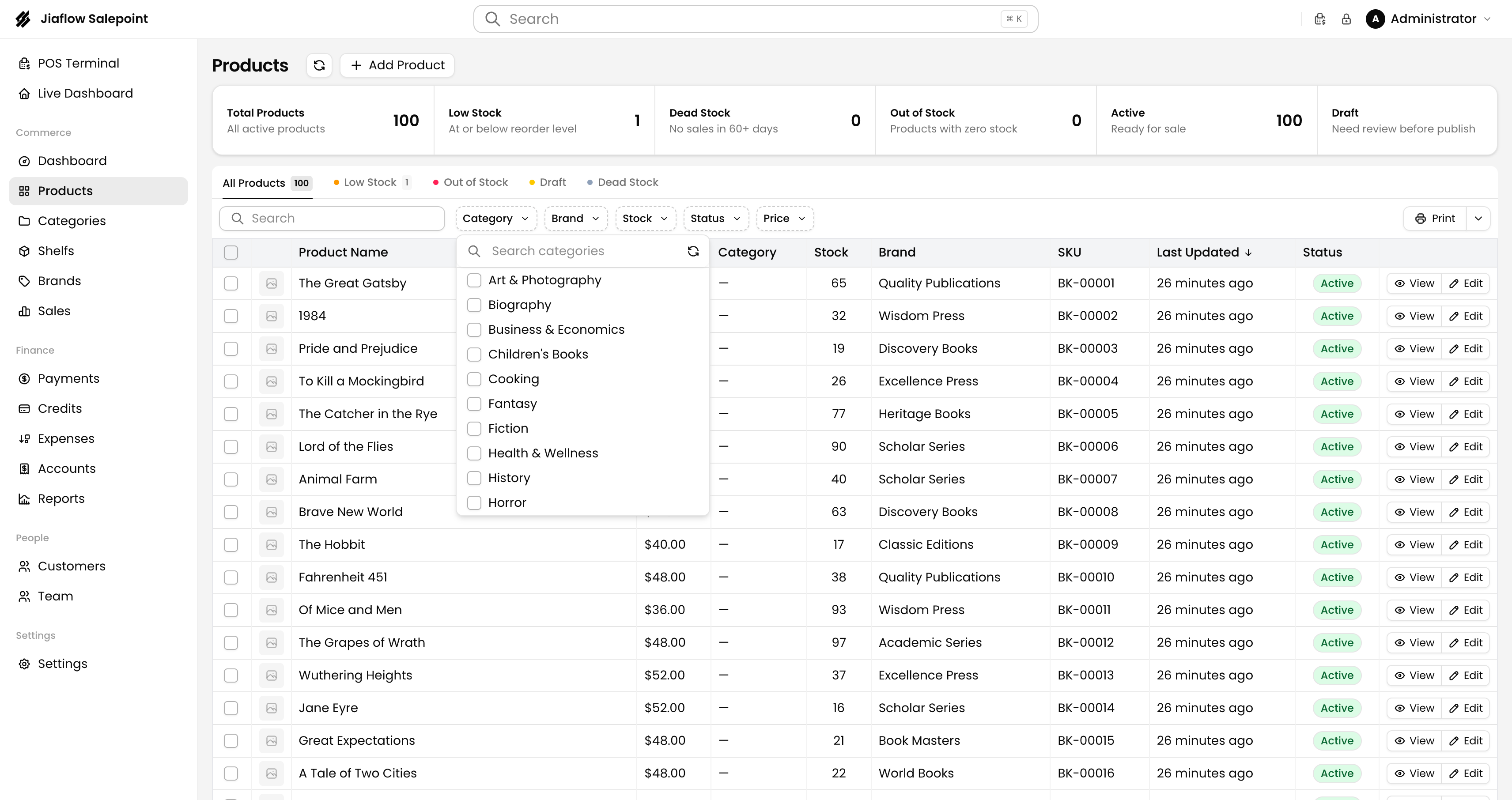
- 2Find the product using the search bar or by browsing the list.
- 3Click the Edit button on the right side of the row.
- 4Make your changes and click Update.
Changing the cost price affects gross profit calculations going forward, but does not retroactively change old sales.
Delete a Product
Deleting a product removes it from both inventory and the POS terminal. Existing sales that included this product are preserved in your records.
- 1Go to Products.
- 2Click the ⋯ Actions dropdown on the product row.
- 3Select Delete and confirm the prompt.
Deletion is permanent. If a product is just out of stock, consider setting its stock quantity to 0 instead so you can restock it later.
Import Products
If you have a large inventory, you can bulk-import products from a CSV file instead of adding them one by one.
- 1Go to Products.
- 2Click the Import button and download the CSV template.
- 3Fill in your product data following the template column order.
- 4Upload the completed CSV and click Import.
- 5Review the import summary and fix any errors highlighted in red.
Always test with a small CSV (5–10 rows) first before uploading your full inventory.
Product Fields Reference
Here is what each field in the product form means:
| Field | Required | Description |
|---|---|---|
| Name | Yes | The product name shown at POS and in reports. |
| SKU / Barcode | No | Used for barcode scanning at checkout. |
| Category | No | Organises products for filtering and reports. |
| Shelf | No | Physical shelf or storage location. |
| Brand | No | Manufacturer or brand name. |
| Sale Price | Yes | Price charged to the customer. |
| Cost Price | Yes | What you paid for the product — used to calculate gross profit. |
| Stock Quantity | Yes | Current units in stock. Updated automatically when a sale is made. |
| Low Stock Alert | No | Sends an alert when stock falls below this number. |