
Getting Started
Choose the Windows desktop app or open Jiaflow Sales in your browser.
Set up the desktop app
The public Windows download is unavailable. Contact Jiaflow for the setup file and an offline activation key. On a Mac or Linux computer, use the browser.
- Open the Windows setup file from Jiaflow and follow the steps on screen. If Jiaflow sends a ZIP file, right-click it, choose Extract All, then open SalePoint Desktop from the extracted folder.
- Open the app while your computer is online. On a new install, click Continue with Google and sign in in your browser.
- Return to the app. Set and confirm a password for this computer, then click Complete account. If the app asks you to log in, use your Google email address and the password you just set.
- On the Activate Jiaflow POS screen, enter the key from Jiaflow and click Activate. Keep your computer online until the app checks the key.
Open Jiaflow Sales online
Open Jiaflow Sales in your browser. You can use it without installing an app. If this is your first time, follow the steps below to ask for access.
Sign up online
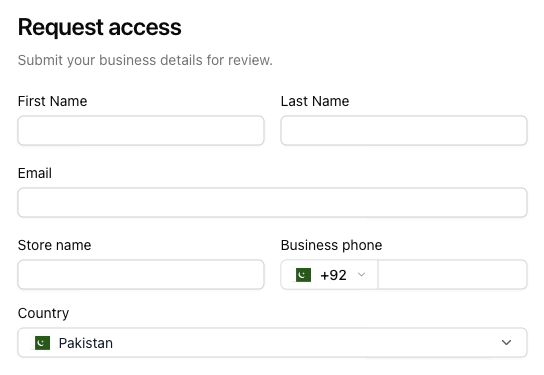
- Open the Request access form.
- Enter your name, email, store name, and business phone number. Choose your country.
- Read and agree to the terms of service and privacy policy. If you see a Verification code field, type the code shown. Click Submit request.
- When you see Information submitted, your request is in. Jiaflow will review your details and contact you.
Log in online
Once you have access, open the login page. Enter your email and password, then click Log in. If your manager gave you a staff login link, open that link and use your staff username and password.
Use the dashboard
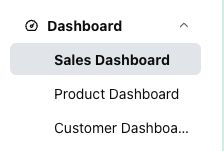
- In the left menu, click Dashboard, then Sales Dashboard.
- On the Sales Summary page, use the date button at the top to choose the period you want to see.
- Total Revenue shows the value of your sales.
- Amount Received shows the money you have collected.
- Total Orders shows how many orders you had.