Payment Accounts
Track cash, bank, and wallet payments in Jiaflow.
Add a payment account
- Open Payment Accounts → Payment Accounts. Click Add Payment Account.
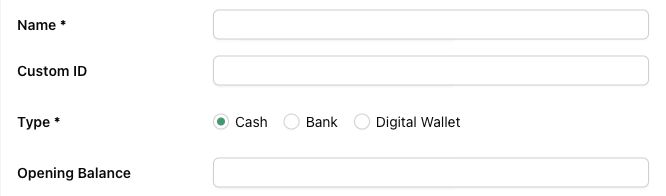
- Enter a Name, such as Front Till. Choose the Type that fits your account, such as Cash, Bank, or Digital Wallet.
- If the account already has money, enter its starting amount in Opening Balance. Click Save Account.
Record a payment
- Open Transactions → New Transaction. Choose what the payment is for, such as a Sale or a supplier Bill.
- Find and select the record. If you see Outstanding Entries, tick the entries this payment should cover.
- Enter the Amount. Use IN when you receive money and OUT when you pay it out. Bill payments use OUT.
- Choose the Payment Account and check the Date. If you picked entries, check the Allocated column to see how much will go to each one. Click Save Payment.
Check Transactions → All Transactions before you add a payment you may have already recorded at checkout.
Record a transfer
Use this after money moves between two accounts, such as when you take cash from the till and deposit it at the bank.
- Open Payment Accounts → Payment Accounts and click Transfer.
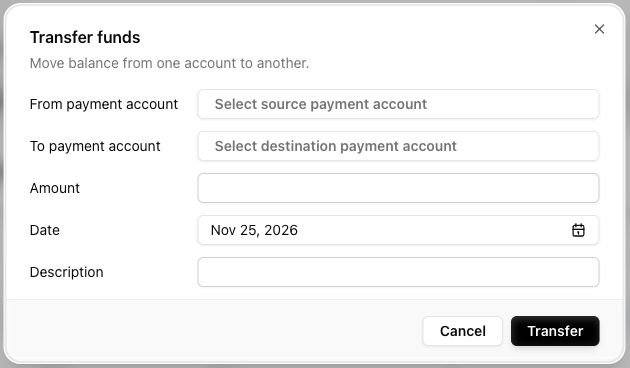
- Choose where the money came from in From payment account and where it went in To payment account.
- Enter the Amount and Date. Click Transfer to update both balances in Jiaflow. Find the record in Transfer History.
Check an account balance
- Count the cash in the till or check your bank or wallet balance. In the Payment Accounts list, click Reconcile on the account's row.
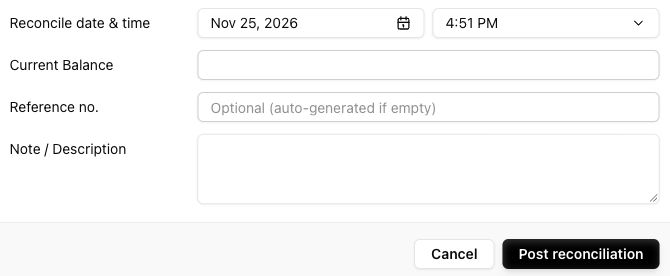
- Enter the amount you counted or checked in Current Balance. Jiaflow compares it with Balance before and shows the Difference.
- If the amounts match, close the form. If they differ, first check for missing or repeated payments and transfers.
- If a difference remains and you need to adjust the account, add a note and click Post reconciliation. This changes the account balance in Jiaflow. You can see the change in Reconciliations.