
Discounts and Pricing Rules
Give a discount at the counter or set up an offer you can use again.
Give a discount at the counter
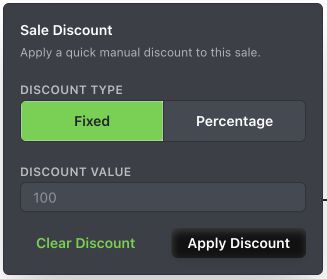
- Add the items to the cart in POS Terminal. Near the total, click Add Sale Discount.
- Choose Fixed to take off a set amount, or Percentage to take off a share of the price.
- Enter the Discount Value and click Apply Discount. Check the new total before you click Checkout.
Set up a discount
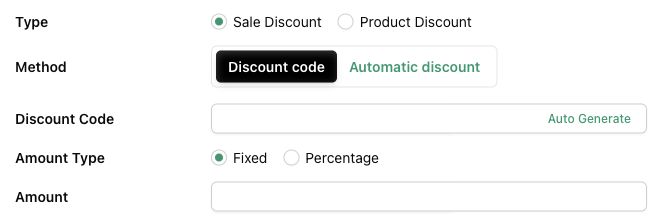
- Open Discounts and click Add Discount. Enter a title, such as Weekend Offer.
- Choose Sale Discount for the whole sale, or Product Discount for items you pick under Products.
- For a sale code, choose Discount code and enter the code you want to use. For an offer that applies when a sale meets your rules, choose Automatic discount. Choose Fixed or Percentage and enter the Amount.
- Set the Start date. Add an end date or a minimum purchase if the offer needs one. Check that Status is Active, then click Save Discount.
Use a sale discount code
Open Sales → Add Sale and add the customer's items. Under the item list, type the code in Enter discount code and click Apply. Check the discount and total before you save the sale.
For an automatic offer, check the total after adding items and choosing the customer. If the offer is missing, check its dates, the items and customer it covers, and any minimum purchase.

Set and use a pricing rule
A pricing rule lets you set a new price for the products you choose. You can use the same rule on more than one sale.
- Open Products → Pricing Rules and click Add Pricing Rule. Enter a title and set Status to Active.
- Under Product Adjustments, find a product. Choose New Price under Mode and enter the price in Price/Value. Check the Final price. Repeat for each product that needs a new price.
- Click Save Pricing Rule. In Sales → Add Sale, add the products. Click Pricing Rule, choose the rule, and click Apply. Check the item prices before you save.
To change the regular price by an amount or percent, use Margin. A negative number lowers the price. For example, −10 with Percentage takes 10% off.