
Online Store
Set up a store that customers can visit online. Use these steps when Online Store is available in your account.
Choose a theme
A theme gives your store its look and layout. If Online Store is missing from the left menu, open App Store and activate it if your plan includes it.
- Open Online Store → Themes.
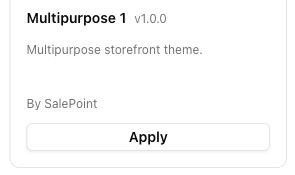
- Choose a theme and click Apply. If you already have a theme in use, click Manage on its card to open your pages.
Build a page
- Open Online Store → Pages. For a new page, click Add Page, enter a title, choose Draft, and click Save.
- Find your page and click Open Editor. Click a section to change its text or pictures. Use Add section to put something new on the page.
- Click Save, then Preview to see the draft. You can also use the phone button in the editor to see how the page fits on a small screen.
Publish a page
- In the editor, click Save to keep your latest edits. Open the arrow next to Save and choose Publish. This makes the saved page available to customers.
- Open the same menu and choose View Page. Check the live page and use that link when you share it.
To make a different page the first page your customers see, go back to Pages. Open the menu on that published page and choose Set as Homepage.
Use your own domain
A domain is your store's web address. Ask Jiaflow support to help point your domain to the store. In Online Store → Settings, enter it in Domain and click Connect Domain. Open the Storefront URL to check that it works before you share it.
Set up store navigation
Open the visual editor and choose Settings. Open an existing menu or create a menu. Use Add Item to add a link, give it a name, and save it. If your theme has a menu picker in its header or footer settings, choose the menu there. Preview the store and click the links to check them.
Check the cart and checkout
- In Online Store → Pages, find system pages such as Cart and the account pages. Open their editor to change the layout around the built-in cart or account content. Their web addresses are fixed.
- Open the storefront, add a product to the cart, and check the item, quantity, and total. Follow the cart link to Checkout and review the customer details and payment options shown there.
- Use a test store if you need to place an order to check the full flow. Checkout opens as its own screen when a customer continues from the cart.