
Stock and Buying
Keep track of what you have and what comes in from suppliers.
Add sizes and colors
- Open Products → All Products and click New Product. Enter the product name and choose Variable as the product type.
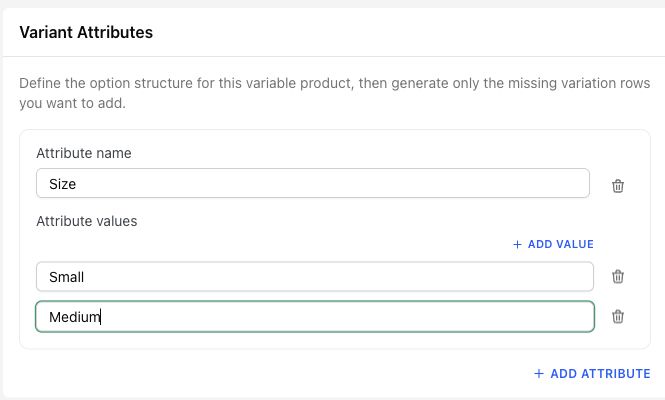
- Under Variant Attributes, enter an Attribute name, such as Size. Enter a value, such as Small. Click Add value for each other size.
- To add colors too, click Add attribute. Name it Color and add the colors you sell.
- The choices appear under Variations. Check each one, enter its Regular price, and fill in Stock quantity if you track its stock. Click Save Product.
Add and print barcodes
In the product form, enter the code from the package in Barcode. If the item has no code, click Generate to make one. For a product with sizes or colors, use the barcode field for each choice in Variations. Click Save Product.
- To print labels, open Products → Barcodes. Search for the items and select them.
- Choose a Label preset for your labels and set Qty to Print for each item.
- Click Generate and check the Print Preview. Click Print, then Print & Save. Choose your printer in the browser print window.

Count and fix stock
- Count how many units of the item you have. Open Products → All Products and find the item.
- Open the arrow next to View on its row and choose Update Stock.
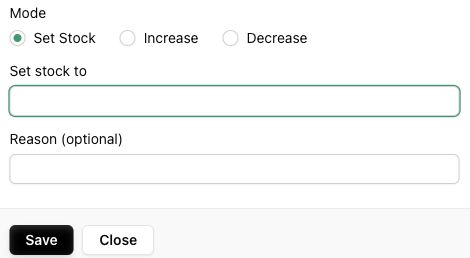
- Choose Set Stock and enter the full count in Set stock to. You can add a reason, such as Shelf count. Click Save.
Use Increase or Decrease when you only know how many units to add or remove. To check past changes, choose Stock Movement from the same menu.
Record a purchase
If the supplier is new, open Suppliers → Suppliers. Click Add Supplier, enter the supplier name, and click Save Supplier.
- Open Purchase → New Bill. Choose the supplier and enter the bill title and date.
- In Bill Items, use Search & add product to add each item. Enter its Qty and Unit Amount, which is the price for one unit on the bill.
- If the goods have yet to arrive, leave the bill as Draft and click Save Bill.
- When the goods arrive, check the quantities and set Status to Confirmed. Click Save & Post Changes and confirm to add the items to stock.
Tick Update Cost for an item if you want this bill's unit amount to become its new cost price.

Manage suppliers and unpaid bills
- Open Suppliers → Suppliers and open a supplier record to update its contact details. Use Suppliers → Supplier Groups → Add Supplier Group to make a group, then choose it on the supplier record.
- On a bill, go to Notes & Attachment → Upload Invoice / Receipt and add the supplier's PDF or image. Save the bill.
- Open Purchase → Bills, find the supplier's bill, and check its payment status and balance. Use New Transaction to pay a specific bill. Use the Supplier Ledger to record payments against outstanding bills.